
 PostGIS
 Mobile
 QGIS
QGIS MapBender
 GeoServer
 GeoNode
 GeoNetwork
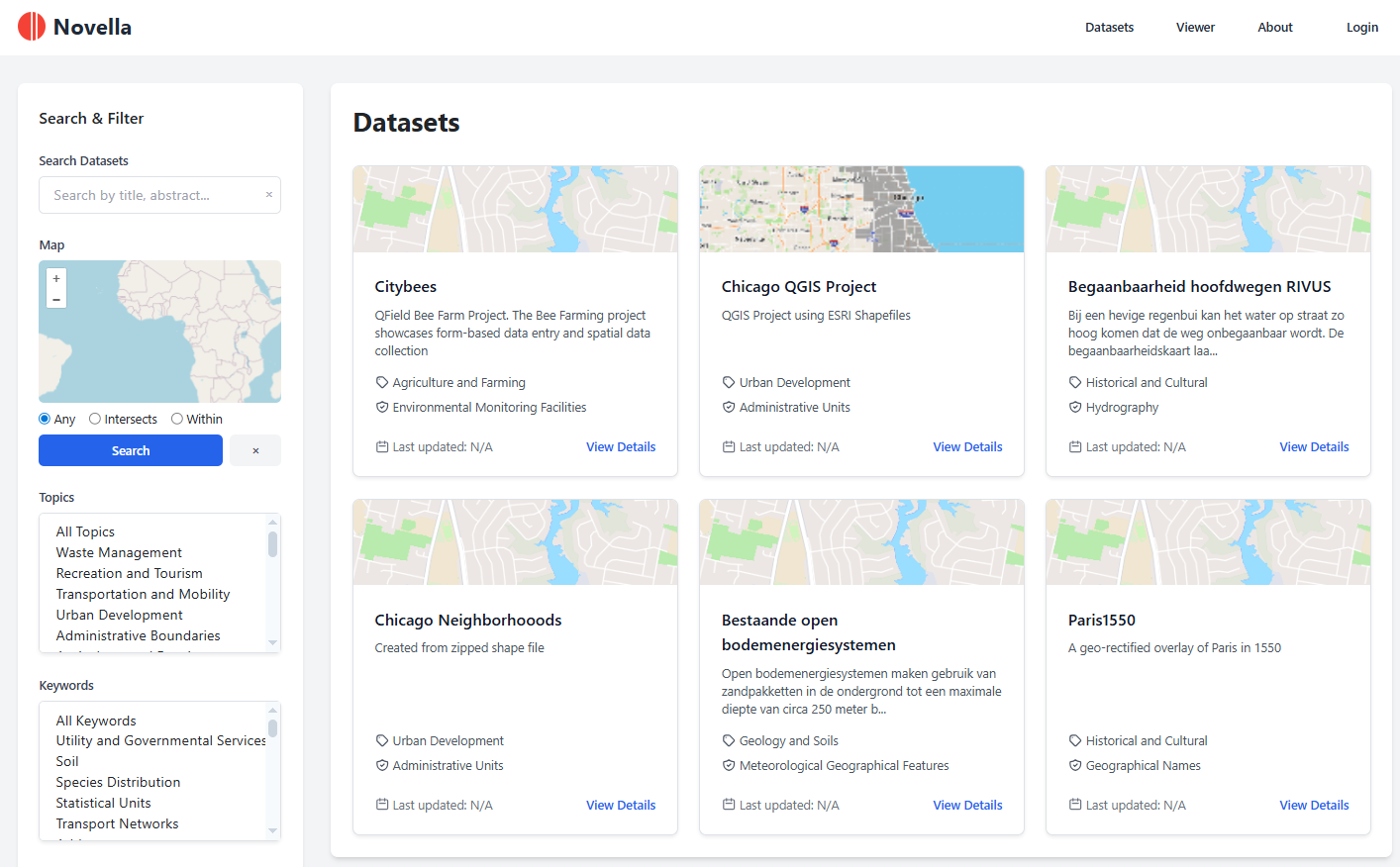
 Novella
 Solutions










143 lines
2.6 KiB
ReStructuredText
143 lines
2.6 KiB
ReStructuredText
.. This is a comment. Note how any initial comments are moved by
|
|
transforms to after the document title, subtitle, and docinfo.
|
|
|
|
.. demo.rst from: http://docutils.sourceforge.net/docs/user/rst/demo.txt
|
|
|
|
.. |EXAMPLE| image:: static/yi_jing_01_chien.jpg
|
|
:width: 1em
|
|
|
|
**********************
|
|
Maps
|
|
**********************
|
|
.. contents:: Table of Contents
|
|
Overview
|
|
==================
|
|
|
|
Maps are created from your GeoServer layers
|
|
|
|
|
|
Create Map
|
|
================
|
|
|
|
To add a new Map, go to Add Resource > Map
|
|
|
|
.. image:: ../../_static/map-1.png
|
|
|
|
Give your Map a name and description.
|
|
|
|
Optionally, select a Category
|
|
|
|
.. image:: ../../_static/map-2.png
|
|
|
|
Select the GeoSever layers to include:
|
|
|
|
.. image:: ../../_static/map-3.png
|
|
|
|
Select Basemap(s) to include
|
|
|
|
.. image:: ../../_static/map-4.png
|
|
|
|
Select Map Features to include
|
|
|
|
.. image:: ../../_static/map-5.png
|
|
|
|
Filters can be added only once the Map is saved
|
|
|
|
.. image:: ../../_static/map-6.png
|
|
|
|
Click Generate Map
|
|
|
|
.. image:: ../../_static/map-7.png
|
|
|
|
The generated map is displayed in the preview pane
|
|
|
|
.. image:: ../../_static/map-8.png
|
|
|
|
Adjust the desired initial extent
|
|
|
|
.. image:: ../../_static/map-9.png
|
|
|
|
Under Initial Extent, click the Capture Current Position
|
|
|
|
.. image:: ../../_static/map-10.png
|
|
|
|
The current Map position is populated
|
|
|
|
.. image:: ../../_static/map-11.png
|
|
|
|
Click Generate Map
|
|
|
|
.. image:: ../../_static/map-12.png
|
|
|
|
When you have completed your Map, click the Save to Database button
|
|
|
|
.. image:: ../../_static/map-13.png
|
|
|
|
Your Map has now been created:
|
|
|
|
.. image:: ../../_static/map-14.png
|
|
|
|
|
|
Map Thumbnail
|
|
=====================
|
|
|
|
To set a thumbnail for the map, select Thumbnail on the menu
|
|
|
|
.. image:: ../../_static/map-15.png
|
|
|
|
Chose your thumnail and click Upload
|
|
|
|
.. image:: ../../_static/map-16.png
|
|
|
|
The Map thumbnail has now been set
|
|
|
|
.. image:: ../../_static/map-17.png
|
|
|
|
Edit Map
|
|
=====================
|
|
|
|
To edit a Map, click the edit link
|
|
|
|
.. image:: ../../_static/map-edit-1.png
|
|
|
|
Make any changes or updates, making sure to click Update Map as you go
|
|
|
|
.. image:: ../../_static/map-edit-2.png
|
|
|
|
Once completed, click the Update Map button
|
|
|
|
|
|
|
|
Map Filters
|
|
===============================
|
|
|
|
To add a Map filter, expand the Layer Filter section
|
|
|
|
.. image:: ../../_static/map-filter-1.png
|
|
|
|
Add any Filters you wish to add
|
|
|
|
.. image:: ../../_static/map-filter-2.png
|
|
|
|
For multiple Filters on same layer, click "Add Condition"
|
|
|
|
be sure to select "And" or "Or" as needed
|
|
|
|
.. image:: ../../_static/map-filter-3.png
|
|
|
|
Click Generate Map
|
|
|
|
.. image:: ../../_static/map-filter-4.png
|
|
|
|
Your Map is now Filtered
|
|
|
|
.. image:: ../../_static/map-filter-5.png
|
|
|
|
|
|
Delete Map
|
|
===================
|
|
|
|
To delete a Map, click the delete icon
|
|
|
|
|