
 PostGIS
 Mobile
 QGIS
QGIS MapBender
 GeoServer
 GeoNode
 GeoNetwork
 Novella
 Solutions








93 lines
1.8 KiB
ReStructuredText
93 lines
1.8 KiB
ReStructuredText
|
|
Quick Start
|
|
=====
|
|
|
|
This is a Quick Start Guide for our QWC2 Hosting.
|
|
|
|
Note that each item is covered in detail in subsequent sections of this documentation.
|
|
|
|
|
|
1. Install the QGIS Plugin.
|
|
~~~~~~~~~~~~~~~~~~~~~~~~~~
|
|
|
|
.. image:: images/plugin-install
|
|
|
|
|
|
2. Launch Plugin
|
|
---------------------------
|
|
|
|
Launch the plugin by going to Web > QWC2
|
|
|
|
.. image:: images/qwc_service_name.png
|
|
|
|
|
|
|
|
|
|
3. Enter Server Information
|
|
~~~~~~~~~~~~~~~~~~~~~~~~~~
|
|
|
|
Enter your credentials
|
|
|
|
1. In the QWC2 plugin, give your server a name
|
|
2. Enter your hostname (e.g. geo.webgis1.com)
|
|
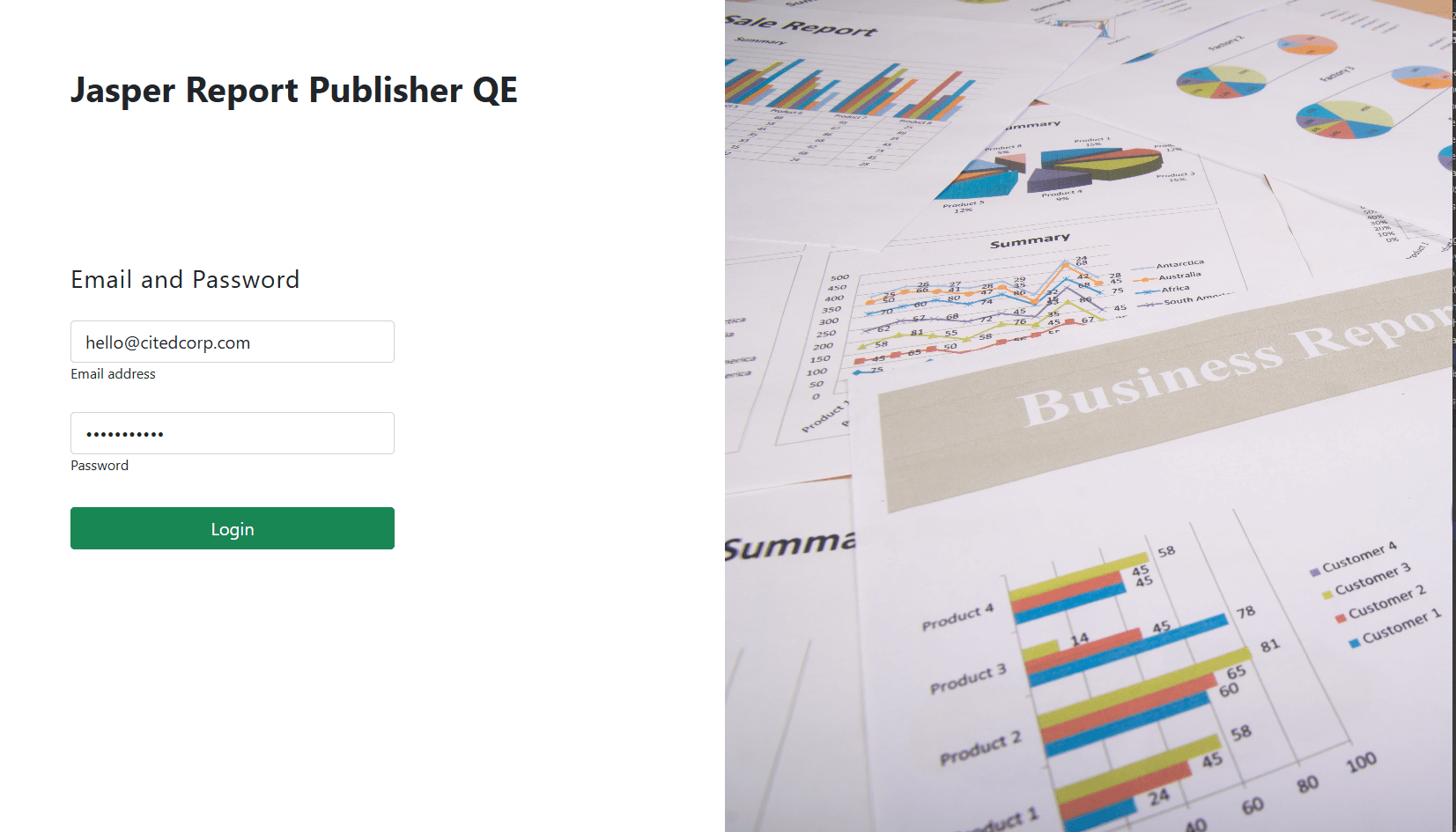
3. Enter your email and password
|
|
4. Click Save
|
|
|
|
.. note::
|
|
Close the plugin and open it again if the Server is not visible immediately.
|
|
|
|
|
|
|
|
|
|
4. Create Tenant
|
|
~~~~~~~~~~~~~~~~~~~~~~~~~~
|
|
|
|
While not required, it is strongly recommended to create at least one new Tenant.
|
|
|
|
Doing so will leave the Default Tenant empty so subsequent Tenants will start cleanly.
|
|
|
|
Click Tenant on the left menu, give your Tenant and name and click Create
|
|
|
|
|
|
.. image:: images/plugin-5-create-Tenant.png
|
|
|
|
You should see a success message like below
|
|
|
|
.. image:: images/plugin-6-create-Tenant
|
|
|
|
|
|
.. note::
|
|
If you have created mutliple Tenants, be sure to connect as the correct Tenant
|
|
|
|
|
|
|
|
4. Go to Maps > Add New
|
|
~~~~~~~~~~~~~~~~~~~~~~~~~~
|
|
|
|
|
|
Give your map a name and description and select the QGIS Project from the dropdown
|
|
|
|
.. image:: images/qwc_map.png
|
|
|
|
|
|
There are a large number of features and options, but for now, just go scroll down to Security and select the existing User Group
|
|
|
|
.. image:: images/Quick-Start-Login-12.png
|
|
|
|
|
|
Click Create
|
|
~~~~~~~~~~~~~~~~~~~~~~~~~~
|
|
|
|
ON the home page, click the link to your new map:
|
|
|
|
.. image:: images/Quick-Start-Login-14.png
|
|
|
|
|
|
Your map has been published!
|
|
~~~~~~~~~~~~~~~~~~~~~~~~~~
|
|
|
|
.. image:: images/qwc_published.png
|
|
|
|
|
|
|