
 PostGIS
 Mobile
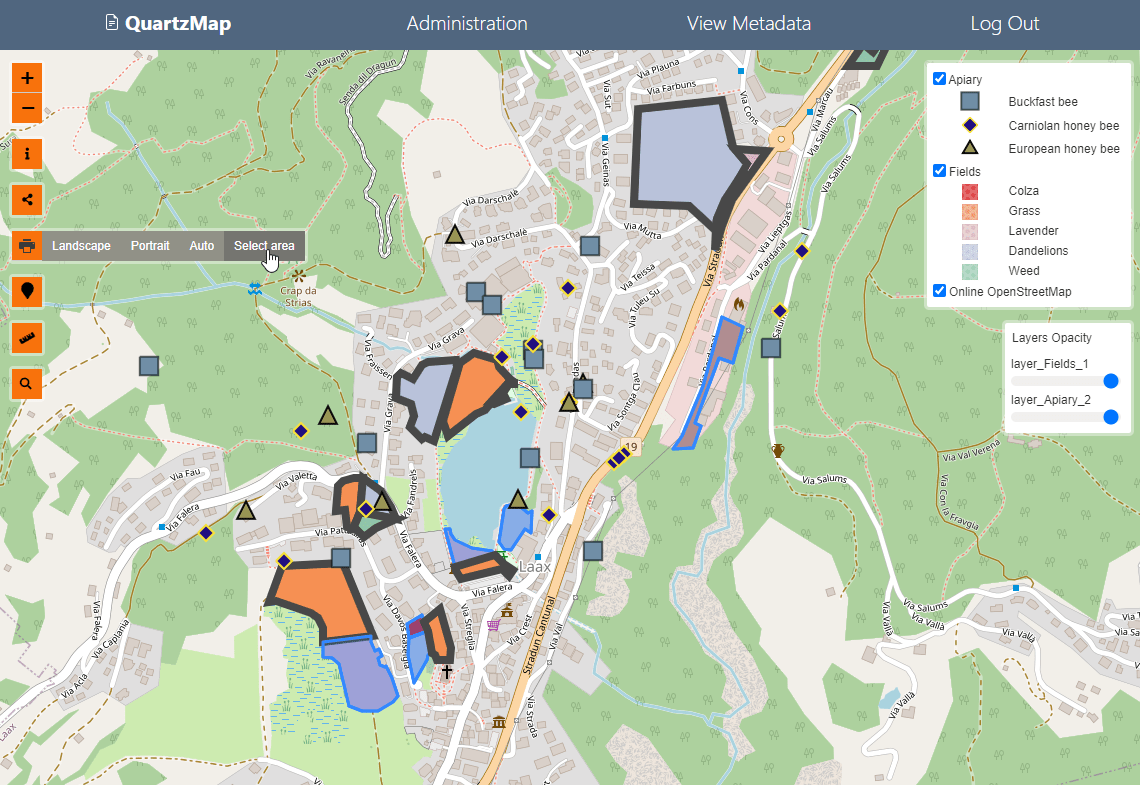
 QGIS
QGIS MapBender
 GeoServer
 GeoNode
 GeoNetwork
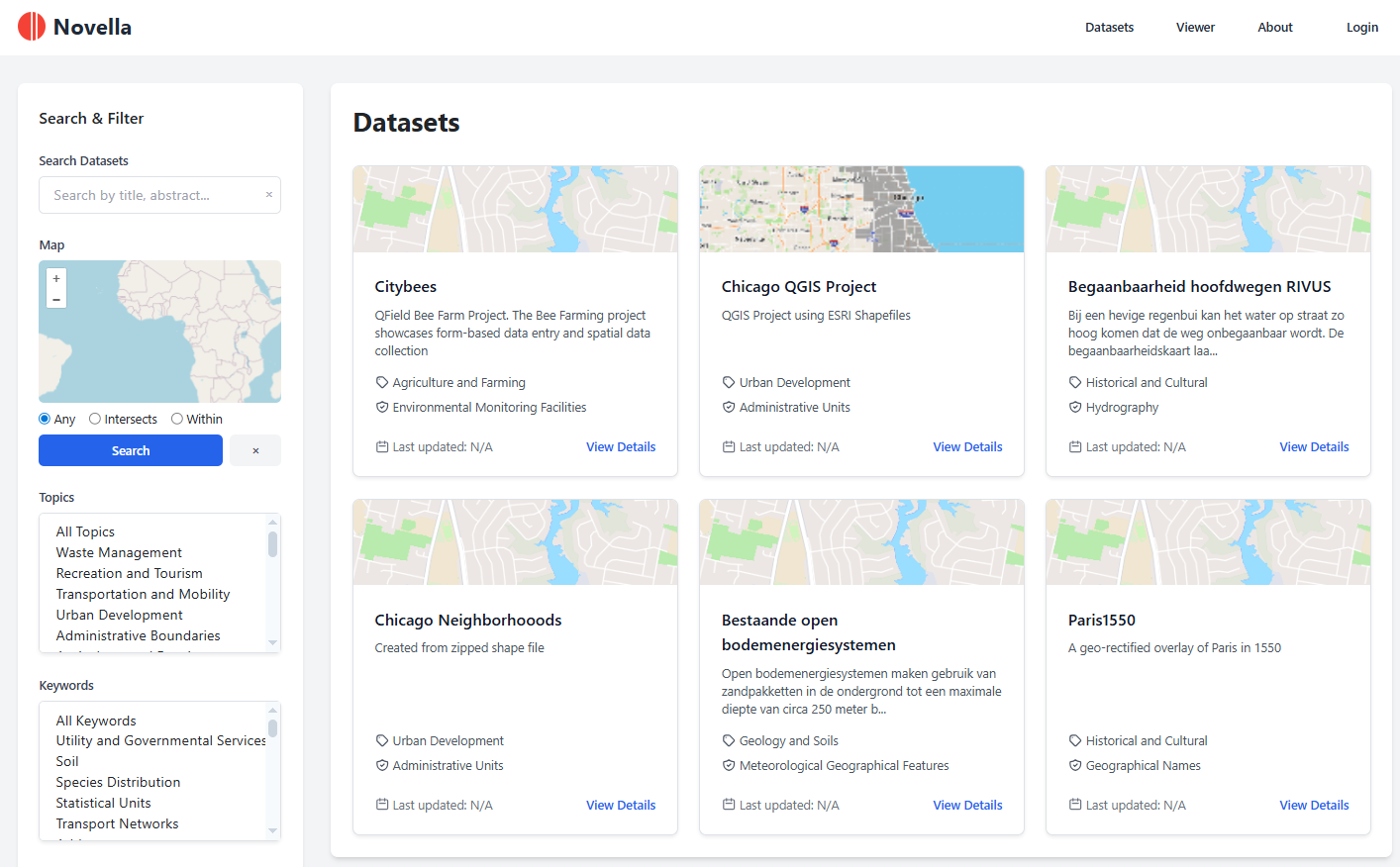
 Novella
 Solutions










312 lines
8.3 KiB
Markdown
312 lines
8.3 KiB
Markdown
# Configuration Guide
|
|
|
|
This guide covers all configuration options available in Aurora GIS.
|
|
|
|
## Configuration Files
|
|
|
|
### Primary Configuration: `config/const.php`
|
|
|
|
This file contains the core application constants. It is created during initialization and should not be edited manually unless necessary.
|
|
|
|
```php
|
|
const DB_HOST = 'localhost'; // PostgreSQL host
|
|
const DB_NAME = 'aurora_gis'; // Database name
|
|
const DB_USER = 'aurora_user'; // Database username
|
|
const DB_PASS = 'your_password'; // Database password
|
|
const DB_PORT = '5432'; // Database port
|
|
|
|
const DATA_DIR = '/var/www/data'; // Data directory for file storage
|
|
const SESS_USR_KEY = 'dc_user'; // Session key for user data
|
|
const SUPER_ADMIN_ID = 1; // ID of super admin user
|
|
```
|
|
|
|
### Database Configuration: `config/database.php`
|
|
|
|
This file handles database connections and connection pooling settings.
|
|
|
|
Key settings:
|
|
- **PDO Error Mode**: Set to `ERRMODE_EXCEPTION` for error handling
|
|
- **Prepared Statements**: Uses emulated prepares for PgBouncer compatibility
|
|
- **Statement Timeout**: 30 seconds (30000ms)
|
|
- **Idle Transaction Timeout**: 15 seconds (15000ms)
|
|
|
|
## Authentication Configuration
|
|
|
|
### OAuth Providers
|
|
|
|
Configure OAuth providers in `config/const.php`:
|
|
|
|
```php
|
|
const DISABLE_OAUTH_USER_CREATION = false; // Set to true to disable auto user creation
|
|
const GITHUB_CLIENT_ID = 'your_github_client_id';
|
|
const GITHUB_CLIENT_SECRET = 'your_github_client_secret';
|
|
const GOOGLE_CLIENT_ID = 'your_google_client_id';
|
|
const GOOGLE_CLIENT_SECRET = 'your_google_client_secret';
|
|
const MICROSOFT_CLIENT_ID = 'your_microsoft_client_id';
|
|
const MICROSOFT_CLIENT_SECRET = 'your_microsoft_client_secret';
|
|
const MICROSOFT_TENANT_ID = 'your_microsoft_tenant_id';
|
|
```
|
|
|
|
### OAuth Setup
|
|
|
|
1. **GitHub OAuth**:
|
|
- Go to GitHub Settings > Developer settings > OAuth Apps
|
|
- Create a new OAuth App
|
|
- Set Authorization callback URL: `https://your-domain/auth-github.php`
|
|
- Copy Client ID and Client Secret
|
|
|
|
2. **Google OAuth**:
|
|
- Go to Google Cloud Console > APIs & Services > Credentials
|
|
- Create OAuth 2.0 Client ID
|
|
- Add authorized redirect URI: `https://your-domain/auth-google.php`
|
|
- Copy Client ID and Client Secret
|
|
|
|
3. **Microsoft OAuth**:
|
|
- Go to Azure Portal > App registrations
|
|
- Create new registration
|
|
- Add redirect URI: `https://your-domain/auth-microsoft.php`
|
|
- Copy Application (client) ID, Directory (tenant) ID, and Client secret
|
|
|
|
## Data Directory Configuration
|
|
|
|
The `DATA_DIR` constant specifies where uploaded files and processed data are stored:
|
|
|
|
```php
|
|
const DATA_DIR = '/var/www/data';
|
|
```
|
|
|
|
Ensure this directory:
|
|
- Exists and is writable by the web server user
|
|
- Has sufficient disk space
|
|
- Has proper permissions (755 for directories, 644 for files)
|
|
|
|
Subdirectories created automatically:
|
|
- `uploads/` - Uploaded files
|
|
- `uploads/geoserver_documents/` - GeoServer documents
|
|
- `uploads/tabular/` - Tabular data files
|
|
- `uploads/raster/` - Raster files
|
|
- `uploads/qgis/` - QGIS projects
|
|
- `logs/` - Application logs
|
|
|
|
## Database Settings
|
|
|
|
### Connection Pooling (PgBouncer)
|
|
|
|
If using PgBouncer for connection pooling, the application uses emulated prepared statements:
|
|
|
|
```php
|
|
PDO::ATTR_EMULATE_PREPARES => true
|
|
```
|
|
|
|
### Timeout Settings
|
|
|
|
Configured in `config/database.php`:
|
|
|
|
```php
|
|
$pdo->exec("SET statement_timeout = 30000"); // 30 seconds
|
|
$pdo->exec("SET idle_in_transaction_session_timeout = 15000"); // 15 seconds
|
|
```
|
|
|
|
Adjust these values based on your workload:
|
|
- Increase `statement_timeout` for long-running queries
|
|
- Decrease `idle_in_transaction_session_timeout` to prevent connection leaks
|
|
|
|
## Application Settings
|
|
|
|
Application settings are stored in the `app_settings` table and can be managed via the admin interface or directly in the database.
|
|
|
|
### Common Settings
|
|
|
|
Access via `includes/settings.php` functions:
|
|
|
|
```php
|
|
get_app_setting($pdo, 'setting_key', $default);
|
|
set_app_setting($pdo, 'setting_key', 'value');
|
|
```
|
|
|
|
### System Settings Page
|
|
|
|
Access system settings via the admin interface at `/system_settings.php`:
|
|
|
|
- **Site Name**: Display name for the application
|
|
- **Default Basemap**: Default map tile provider
|
|
- **Max Upload Size**: Maximum file upload size
|
|
- **Enable Public Access**: Allow anonymous dataset access
|
|
- **Email Settings**: SMTP configuration for notifications
|
|
|
|
## Worker Configuration
|
|
|
|
Background workers are configured via systemd service files in the `systemd/` directory.
|
|
|
|
### Worker Service Files
|
|
|
|
Each worker has a corresponding `.service` file:
|
|
|
|
- `hotspot_worker.service` - Hotspot analysis worker
|
|
- `outlier_worker.service` - Outlier analysis worker
|
|
- `nearest_worker.service` - Nearest neighbor analysis worker
|
|
- `dissolve_worker.service` - Dissolve operations worker
|
|
- `clip_worker.service` - Clip operations worker
|
|
- `raster_clip_worker.service` - Raster clip operations worker
|
|
|
|
### Configuring Workers
|
|
|
|
Edit the service file to set:
|
|
- Working directory
|
|
- PHP path
|
|
- User/group
|
|
- Environment variables
|
|
- Resource limits
|
|
|
|
Example service file:
|
|
|
|
```ini
|
|
[Unit]
|
|
Description=Hotspot Analysis Worker
|
|
After=network.target postgresql.service
|
|
|
|
[Service]
|
|
Type=simple
|
|
User=www-data
|
|
WorkingDirectory=/var/www/html/aurora-gis
|
|
ExecStart=/usr/bin/php workers/hotspot_analysis_worker.php
|
|
Restart=always
|
|
RestartSec=10
|
|
|
|
[Install]
|
|
WantedBy=multi-user.target
|
|
```
|
|
|
|
## GeoServer Configuration
|
|
|
|
If using GeoServer for WMS/WFS services:
|
|
|
|
1. Configure GeoServer connection in `config/const.php` or environment variables
|
|
2. Set GeoServer admin credentials
|
|
3. Configure workspace and data stores
|
|
4. Enable required services (WMS, WFS, WCS)
|
|
|
|
## QGIS Server Configuration
|
|
|
|
For QGIS project rendering:
|
|
|
|
1. Install QGIS Server (see Installation Guide)
|
|
2. Configure QGIS Server settings in `mapproxy_settings.php`
|
|
3. Set QGIS Server URL in application settings
|
|
4. Ensure QGIS projects are accessible to QGIS Server
|
|
|
|
## pg_tileserv Configuration
|
|
|
|
For vector tile generation:
|
|
|
|
1. Install and configure pg_tileserv
|
|
2. Ensure PostGIS tables have proper SRID constraints
|
|
3. Configure pg_tileserv to discover tables automatically
|
|
4. Set pg_tileserv URL in application settings
|
|
|
|
## Security Configuration
|
|
|
|
### File Upload Security
|
|
|
|
- File type validation is enforced
|
|
- File size limits can be configured
|
|
- Uploaded files are stored outside the web root when possible
|
|
- File names are sanitized to prevent path traversal
|
|
|
|
### Database Security
|
|
|
|
- Use prepared statements (automatic via PDO)
|
|
- Database credentials stored in `config/const.php` (protect this file)
|
|
- User access controlled via `access_group` and `user_access` tables
|
|
- Dataset-level permissions via `dataset_permissions` table
|
|
|
|
### Session Security
|
|
|
|
- Session key configured via `SESS_USR_KEY` constant
|
|
- Session cookies should be HTTP-only and secure in production
|
|
- Configure session timeout in `php.ini`
|
|
|
|
## Performance Tuning
|
|
|
|
### PostgreSQL Tuning
|
|
|
|
Key PostgreSQL settings for optimal performance:
|
|
|
|
```sql
|
|
-- Increase shared buffers
|
|
shared_buffers = 256MB
|
|
|
|
-- Increase work memory for complex queries
|
|
work_mem = 16MB
|
|
|
|
-- Enable parallel queries
|
|
max_parallel_workers_per_gather = 4
|
|
|
|
-- Optimize for spatial queries
|
|
random_page_cost = 1.1 # For SSD storage
|
|
```
|
|
|
|
### PHP Tuning
|
|
|
|
In `php.ini`:
|
|
|
|
```ini
|
|
memory_limit = 512M
|
|
max_execution_time = 300
|
|
upload_max_filesize = 100M
|
|
post_max_size = 100M
|
|
```
|
|
|
|
### Application Tuning
|
|
|
|
- Enable OPcache for PHP
|
|
- Use connection pooling (PgBouncer)
|
|
- Configure appropriate worker counts
|
|
- Monitor and optimize slow queries
|
|
|
|
## Environment-Specific Configuration
|
|
|
|
### Development
|
|
|
|
- Enable error display: `ini_set('display_errors', 1)`
|
|
- Use verbose logging
|
|
- Disable caching
|
|
- Use test database
|
|
|
|
### Production
|
|
|
|
- Disable error display: `ini_set('display_errors', 0)`
|
|
- Enable error logging
|
|
- Use production database
|
|
- Enable caching
|
|
- Use HTTPS only
|
|
- Configure proper backup strategy
|
|
|
|
## Monitoring and Logging
|
|
|
|
### Application Logs
|
|
|
|
Logs are stored in the `logs/` directory:
|
|
- `error.log` - PHP errors
|
|
- `worker_*.log` - Worker-specific logs
|
|
- `import_*.log` - Import operation logs
|
|
|
|
### Database Logging
|
|
|
|
Enable PostgreSQL logging:
|
|
|
|
```conf
|
|
# In postgresql.conf
|
|
logging_collector = on
|
|
log_directory = 'log'
|
|
log_filename = 'postgresql-%Y-%m-%d.log'
|
|
log_statement = 'all' # or 'mod' for modifications only
|
|
```
|
|
|
|
## Related Documentation
|
|
|
|
- [Installation Guide](installation.md)
|
|
- [Architecture Overview](architecture.md)
|
|
- [Workers Documentation](workers/index.md)
|
|
|