
 PostGIS
 Mobile
 QGIS
QGIS MapBender
 GeoServer
 GeoNode
 GeoNetwork
 Novella
 Solutions











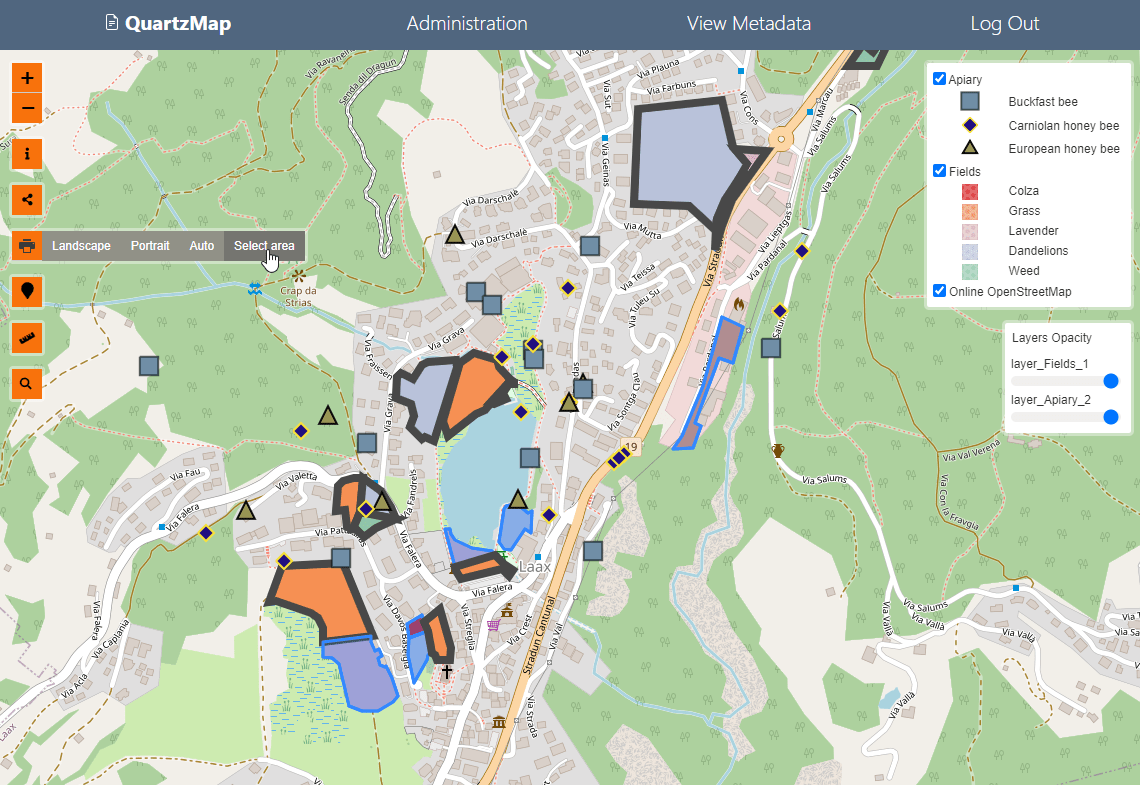
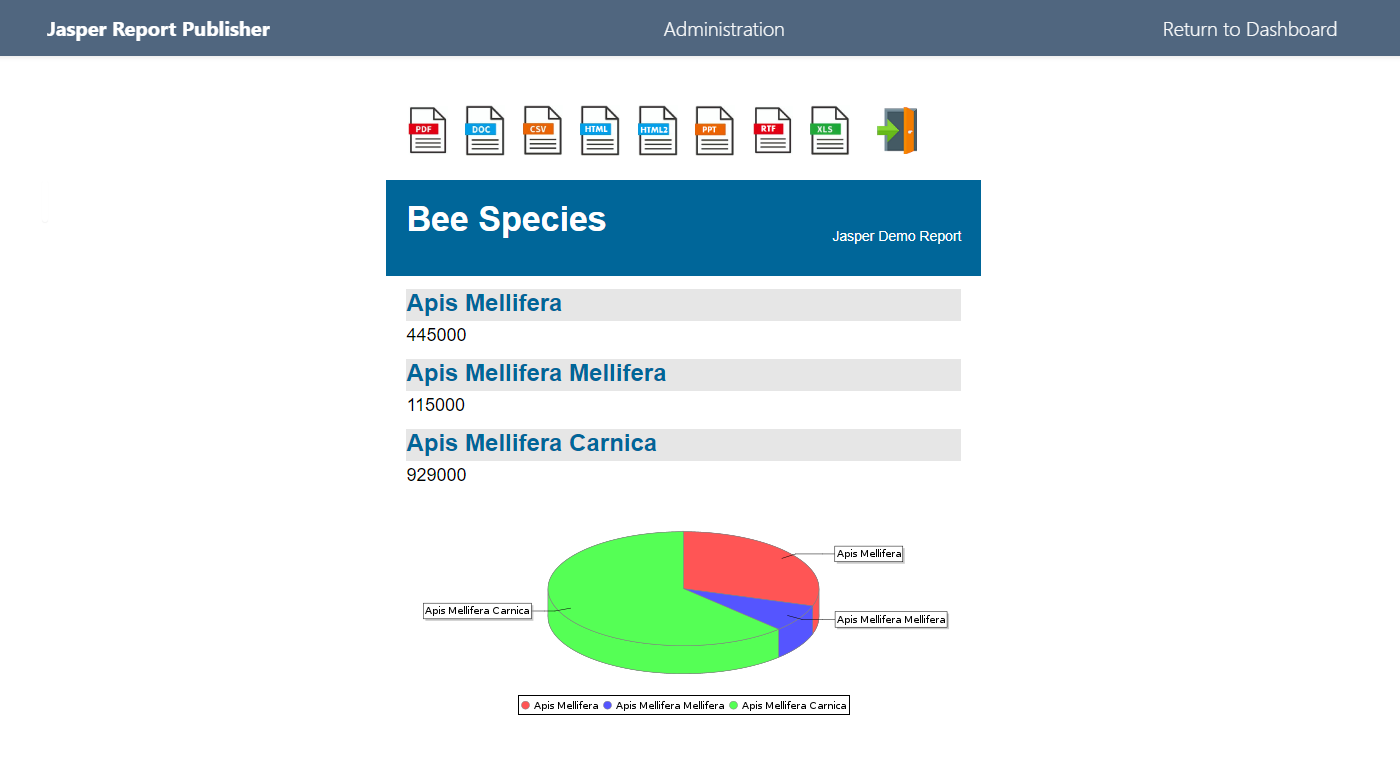

6.5 KiB
6.5 KiB
Installation Guide
This guide will walk you through installing and setting up Aurora GIS on your server.
System Requirements
Server Requirements
- PHP: 7.4 or higher
- PostgreSQL: 12 or higher
- PostGIS: 3.0 or higher
- Web Server: Apache 2.4+ or Nginx 1.18+
- Operating System: Linux (Ubuntu/Debian recommended), macOS, or Windows
PHP Extensions
Required PHP extensions:
pdopdo_pgsqljsonzipgd(for image processing)curl(for URL imports)
Optional but recommended:
gdal(for advanced raster operations)mbstring(for string handling)
Optional Dependencies
- DuckDB: For Overture Maps parquet processing
- QGIS Server: For QGIS project rendering
- GeoServer: For advanced WMS/WFS services
- pg_tileserv: For vector tile generation
Installation Steps
1. Install PostgreSQL and PostGIS
Ubuntu/Debian
# Install PostgreSQL and PostGIS
sudo apt-get update
sudo apt-get install postgresql postgresql-contrib postgis

# Enable PostGIS extension
sudo -u postgres psql -c "CREATE EXTENSION IF NOT EXISTS postgis;"
macOS (Homebrew)
brew install postgresql postgis
brew services start postgresql
Windows
Download and install from:
- PostgreSQL: https://www.postgresql.org/download/windows/
- PostGIS: https://postgis.net/windows_downloads/
2. Create Database
# Create database user
sudo -u postgres createuser -P aurora_user

# Create database
sudo -u postgres createdb -O aurora_user aurora_gis

# Enable PostGIS extension
sudo -u postgres psql -d aurora_gis -c "CREATE EXTENSION IF NOT EXISTS postgis;"
3. Install Application Files
# Clone or download the application
cd /var/www/html  # or your web server directory
git clone <repository-url> aurora-gis
cd aurora-gis

# Set proper permissions
sudo chown -R www-data:www-data .
sudo chmod -R 755 .
sudo chmod -R 775 uploads/
4. Configure Web Server
Apache Configuration
Create or edit /etc/apache2/sites-available/aurora-gis.conf:
<VirtualHost *:80>
    ServerName aurora-gis.local
    DocumentRoot /var/www/html/aurora-gis

    <Directory /var/www/html/aurora-gis>
        Options Indexes FollowSymLinks
        AllowOverride All
        Require all granted
    </Directory>

    ErrorLog ${APACHE_LOG_DIR}/aurora-gis_error.log
    CustomLog ${APACHE_LOG_DIR}/aurora-gis_access.log combined
</VirtualHost>
Enable the site:
sudo a2ensite aurora-gis
sudo systemctl reload apache2
Nginx Configuration
Create /etc/nginx/sites-available/aurora-gis:
server {
    listen 80;
    server_name aurora-gis.local;
    root /var/www/html/aurora-gis;
    index index.php;

    location / {
        try_files $uri $uri/ /index.php?$query_string;
    }

    location ~ \.php$ {
        fastcgi_pass unix:/var/run/php/php7.4-fpm.sock;
        fastcgi_index index.php;
        include fastcgi_params;
        fastcgi_param SCRIPT_FILENAME $document_root$fastcgi_script_name;
    }
}
Enable the site:
sudo ln -s /etc/nginx/sites-available/aurora-gis /etc/nginx/sites-enabled/
sudo nginx -t
sudo systemctl reload nginx
5. Initialize Application
-
Open your web browser and navigate to:
http://your-server/initialize.php -
Fill in the initialization form:
- Database Host:
localhost(or your PostgreSQL host) - Database Name:
aurora_gis - Database User:
aurora_user - Database Password: Your database password
- Database Port:
5432(default) - Admin Email: Your admin email address
- Admin Password: Choose a secure password
- Database Host:
-
Click "Initialize" to:
- Create the
config/const.phpfile with database credentials - Create all required database tables
- Create the initial admin user
- Set up required directories
- Create the
6. Verify Installation
After initialization, you should be able to:
- Log in with your admin credentials at the login page
- Access the home page and see the dashboard
- Upload a test dataset to verify functionality
Post-Installation Setup
Create Required Directories
The initialization script creates most directories, but you may need to create additional ones:
mkdir -p uploads/geoserver_documents
mkdir -p uploads/tabular
mkdir -p uploads/raster
mkdir -p uploads/qgis
mkdir -p logs
chmod -R 775 uploads/
chmod -R 775 logs/
Configure Background Workers
Background workers process long-running jobs. Set them up as systemd services:
# Copy systemd service files
sudo cp systemd/*.service /etc/systemd/system/

# Enable and start workers
sudo systemctl enable hotspot_worker.service
sudo systemctl start hotspot_worker.service
# Repeat for other workers as needed
See the Workers Documentation for details on each worker.
Optional: Install DuckDB (for Overture Maps)
# Ubuntu/Debian
sudo snap install duckdb

# Or download binary from https://duckdb.org/docs/installation/
Optional: Install QGIS Server
# Ubuntu/Debian
sudo apt-get install qgis-server qgis-server-plugin

# Configure QGIS Server
sudo systemctl enable qgis-server
sudo systemctl start qgis-server
Troubleshooting
Database Connection Issues
- Verify PostgreSQL is running:
sudo systemctl status postgresql - Check database credentials in
config/const.php - Ensure PostGIS extension is enabled:
psql -d aurora_gis -c "\dx" - Check PostgreSQL logs:
/var/log/postgresql/postgresql-*.log
Permission Issues
- Ensure web server user (www-data/apache) has read/write access to:
uploads/directorylogs/directoryconfig/const.php(read-only after initialization)
PHP Errors
- Check PHP error log:
/var/log/php-errors.logorphp.inilocation - Verify all required PHP extensions are installed:
php -m - Check PHP version:
php -v(should be 7.4+)
PostGIS Issues
- Verify PostGIS is installed:
psql -d aurora_gis -c "SELECT PostGIS_version();" - Check spatial reference systems:
psql -d aurora_gis -c "SELECT COUNT(*) FROM spatial_ref_sys;"
Next Steps
After successful installation:
- Review Configuration for system settings
- Read Architecture Overview to understand the system
- Explore API Documentation for programmatic access
- Check Analysis Tools for available features